
Desktop App Overview
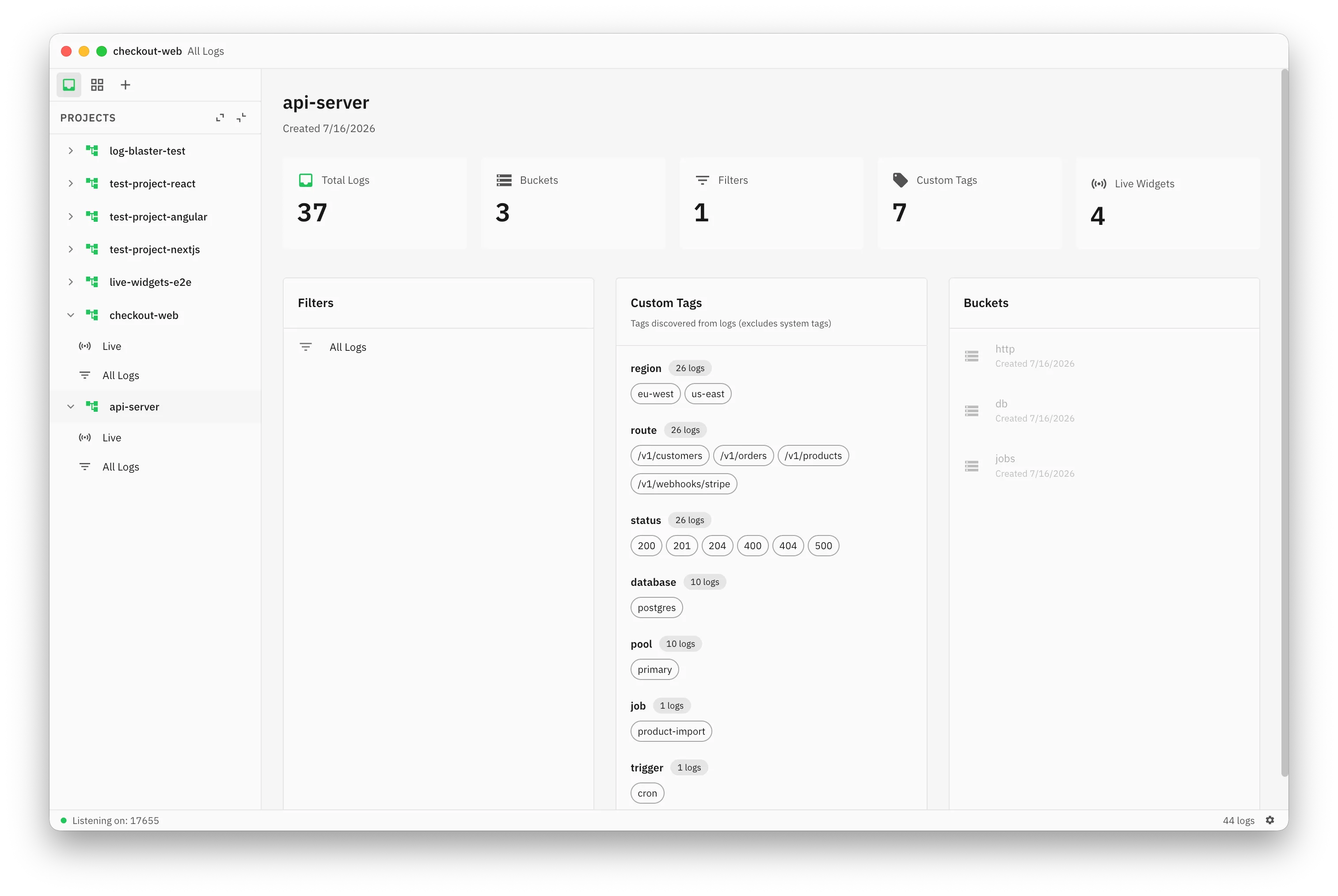
The Gunsole desktop app is where your logs end up. It’s a desktop application that runs on macOS, Windows, and Linux.
What it does
Section titled “What it does”- Receives logs — runs an HTTP server on
localhost:17655 - Stores them — in a local SQLite database
- Displays them — in a real-time, virtualized log table
- Filters them — by level, bucket, tags, message search, time range
- Live widgets — real-time cards, progress bars, tables, and charts driven straight from your code. See Live Widgets
Architecture
Section titled “Architecture”SDK (your app) ↓ POST /logs (gzip JSON)HTTP Server (port 17655) ↓ async channelLog Batcher (buffers per project) ↓ flush every 100ms or 50 logsSQLite (local database) ↓ eventUI (virtualized table)The HTTP server accepts logs and returns 200 OK immediately. Logs are processed asynchronously — batched, stored in the database, and emitted to the UI as events. This keeps ingestion fast even under high log volume.
Performance
Section titled “Performance”- Virtualized rendering — handles 100K+ log entries smoothly
- Server-side filtering — all filtering happens via SQL, not in the UI layer
- Indexed queries — timestamps, levels, buckets, and tags all have database indexes
- Log batching — incoming logs are buffered and flushed in batches to reduce rendering churn
- Gzip decompression — the server automatically handles compressed payloads
Database
Section titled “Database”SQLite with WAL mode, stored locally. No external database, no server, no configuration.
Tables: workspaces, projects, buckets, filters, logs, tags, log_tag_map, app_preferences. Migrations run automatically on startup.
See Installation for database file locations per OS.
Auto-creation
Section titled “Auto-creation”Projects, buckets, and tags are all auto-created. The first time the app receives a log with a new projectId, it creates the project. First time it sees a new bucket name, it creates the bucket. First time it sees a new tag key-value pair, it indexes it. Each new project gets a default “All Logs” filter.
You never need to configure anything before sending logs.
Window management
Section titled “Window management”- Main Window: App shell with sidebar + content area. macOS overlay title bar with traffic lights and drag region. Closing hides to tray (doesn’t quit).
- Settings Window: Separate dedicated window (750x650). Opened via
Cmd+,/ gear icon / tray menu. If already open, focuses and navigates to the requested section. - Inspector Window: Per-log detail view (700x800). Reuses existing window for same log ID. Shows full context JSON, tags as chips, and all metadata fields.
- New Window:
Cmd+N/Ctrl+Ncreates a new main window instance, optionally scoped to a workspace.
System tray
Section titled “System tray”- Icon: Custom monotone icon, uses template mode on macOS (adapts to light/dark menu bar).
- Menu: Open Gunsole, Settings…, Exit.
- Left-click: Show and focus the main window.
- Behavior: Main window hides on close (stays in tray). App runs in background receiving logs even when all windows are hidden.
Menu bar
Section titled “Menu bar”Full system menu bar with keyboard accelerators:
- macOS: Gunsole | File | View | Go | Filter | Logs | Window | Help
- Windows/Linux: File | View | Go | Filter | Logs | Help
| Menu | Items |
|---|---|
| View | Toggle Sidebar, Zoom In/Out/Reset, Full Screen, Refresh Logs |
| Go | Quick Switch (Cmd+K), Back, Forward |
| Filter | New Filter, Save Filter, Duplicate Filter, Reset Filter, Toggle individual levels (Cmd+1–4) |
| Logs | Export Logs, Copy Selected, Pause/Resume Live Tail, Scroll to Top/Bottom, Project Data (opens settings) |
| Help | Documentation, Keyboard Shortcuts (Cmd+/) |
Settings
Section titled “Settings”Opens in a separate window with these sections:
- Workspace Management: Create, rename, delete, and reorder workspaces. Custom emoji icons from a curated icon set. Default workspace (“Unsorted”) is locked.
- Project Settings: Per-project log retention days, auto-delete toggle. Clear logs per project or per bucket. Project workspace assignment, rename, delete. Accessible via
/settings/projectsand/settings/projects/$projectId. - General Preferences: Theme selection (Auto / Light / Dark).
- About Gunsole: App version, platform info, links to GitHub and documentation.
- Danger Zone: “Clear All Logs” (keeps structure — projects, buckets, filters remain) and “Clear All Data” (nuclear reset — deletes everything, recreates default workspace). Both require confirmation.
Auto-update
Section titled “Auto-update”Gunsole updates itself. The app periodically checks releases.gunsole.com for a newer version, and if one’s available, you can download and install it right from Settings → About — no separate installer, no manual download from a website. Install the app once and it stays current.
Optional sign-in
Section titled “Optional sign-in”You can sign in with email or GitHub from the settings window, but you never have to. Sign-in is entirely optional and doesn’t gate any feature — Gunsole is fully free and works 100% offline, with no account required. Signing in is only useful if you plan to use account-linked features down the line; the desktop app itself works the same either way.
Command palette (Cmd+K)
Section titled “Command palette (Cmd+K)”- Quick switcher dialog for navigating across all projects and filters
- Fuzzy search by project name, filter name, or workspace name
- Arrow keys + Enter to navigate, Escape to close
Keyboard shortcuts
Section titled “Keyboard shortcuts”| Shortcut | Action |
|---|---|
Cmd+, (Ctrl+,) | Open Settings |
Cmd+N (Ctrl+N) | New Window |
Cmd+K (Ctrl+K) | Quick Switch (Command Palette) |
Cmd+B (Ctrl+B) | Toggle Sidebar |
Cmd+R (Ctrl+R) | Refresh Logs |
Cmd+= / Cmd+- / Cmd+0 | Zoom In / Out / Reset |
Cmd+F (Ctrl+F) | Full Screen |
Cmd+[ / Cmd+] | Navigate Back / Forward |
Cmd+Shift+N | New Filter |
Cmd+S (Ctrl+S) | Save Filter |
Cmd+D | Duplicate Filter |
Cmd+1 / 2 / 3 / 4 | Toggle Info / Debug / Warn / Error |
Cmd+E (Ctrl+E) | Export Logs |
Cmd+Shift+C | Copy Selected Logs |
Cmd+P (Ctrl+P) | Pause/Resume Live Tail |
Cmd+Up / Cmd+Down | Scroll to Top / Bottom |
Cmd+A (Ctrl+A) | Select All Logs |
Cmd+/ (Ctrl+/) | Keyboard Shortcuts Reference |
- Color Palette: Grayscale (50–900) with green accent
#22C55E. - Log Level Colors: Info (grey), Debug (light grey), Warn (amber
#F59E0B), Error (red#EF4444), Fatal (error.dark). - Typography: IBM Plex Sans, 12px base.
- Light/Dark Mode: Full support with system auto-detection and manual override.
- UI Style: Border-based (no shadows), no ripple effects, custom scrollbars.
Toast notifications
Section titled “Toast notifications”- Fixed bottom-right corner, stacked vertically.
- Severities: success, info, warning, error.
- Auto-dismiss after 4 seconds with manual close button.
Welcome page
Section titled “Welcome page”Shown on first launch or when no project is selected. Contains:
- Gunsole logo and tagline: “A bucket-based log viewer”
- SDK installation command:
pnpm add @gunsole/web - Copyable quick-start code example
- “How it works” explainer (bucket grouping, auto-sidebar, saved filters, local persistence)
- Listening status:
http://localhost:17655
Real-time events
Section titled “Real-time events”When logs arrive, the app emits events to update the UI instantly:
| Event | Payload | Description |
|---|---|---|
gunsole-log-batch | { projectId, logs } | New logs arrived |
gunsole-new-project | Project | Project auto-created |
gunsole-new-bucket | Bucket | Bucket auto-created |
gunsole-tags-updated | — | New tags discovered |
Routes
Section titled “Routes”| Route | View |
|---|---|
/welcome | Getting started page |
/project/$projectId | Project dashboard |
/project/$projectId/$filterId | Log viewer with filter |
/inspector/$logId | Log inspector (separate window) |
/settings | Settings (separate window) |
/settings/projects | Project list |
/settings/projects/$projectId | Project settings |